Ever wondered what “fetch” means on your iPhone? No, it’s not a command to get your dog to bring back the ball. In the tech world, it’s all about how your emails come to you—like magic, but with a bit more tech savvy.
Understanding Fetch on iPhone
Fetch refers to how an iPhone retrieves emails from servers. This process significantly impacts how often users receive updates and can enhance the overall email experience.
What is Fetch?
Fetch is an email retrieval method used on iPhones. This method allows users to access emails from various accounts. Some iPhone users prefer fetch for real-time email updates. Others may opt for manual settings to conserve battery life. The feature allows users to define how frequently their phone checks for new messages. Users can choose options like every 15 minutes, 30 minutes, hourly, or manually fetching emails.
How Fetch Works
Fetch operates in a systematic way to provide email updates. When set, the iPhone communicates with the email server at specified intervals. Notably, this process checks for new messages behind the scenes. The device receives incoming emails and syncs them with the user’s inbox. Some users may experience delays if their fetch settings are less frequent. Overall, fetch improves efficiency and ensures users stay connected with their correspondences.
Types of Fetch Settings
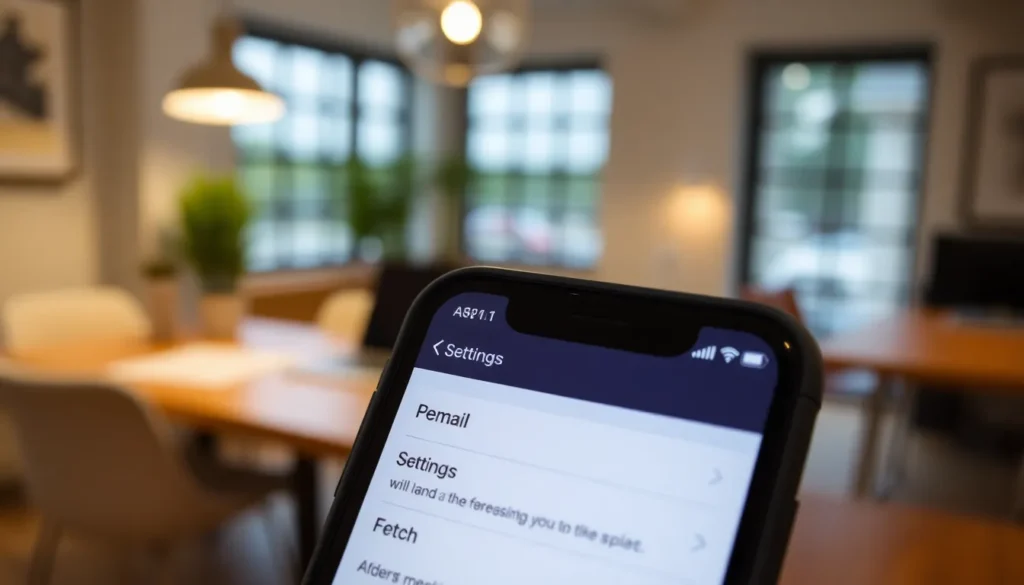
Fetch settings on iPhones allow users to manage how emails are received. These settings include various options that can enhance the email experience.
Push vs. Fetch
Push and fetch are two distinct methods for receiving emails on iPhones. Push settings allow emails to be delivered instantly as they arrive on the server. This method provides immediate access to new emails, ensuring users never miss important messages. Fetch, on the other hand, involves checking the email server at set intervals. Users can choose from options like every 15 minutes, 30 minutes, or hourly, allowing for more control but potentially resulting in delays for less frequent settings. Both methods serve specific needs, with push ideal for real-time communication and fetch suitable for users who prefer less frequent updates.
Manual Fetch
Manual fetch gives users the option to check for new emails whenever they choose. Instead of relying on automatic intervals, selecting this setting allows for refreshing the inbox by tapping a button. This method is particularly beneficial for conserving battery life as the iPhone does not constantly communicate with the email server. Users can take control of their email retrieval, ensuring that they only check for messages when it’s convenient. Manual fetch suits those who prioritize efficiency and want to avoid unnecessary data usage.
Benefits of Using Fetch
Fetch offers several advantages that enhance the email experience on iPhones. Users can manage their email retrieval methods effectively, balancing the need for timely updates with conserving resources.
Improved Battery Life
Improving battery life becomes evident with the manual fetch option. Users can choose to sync emails only when required, reducing the frequency of automatic checks. This approach minimizes background activity, resulting in less power consumption. Users opting for extended intervals, such as every hour, further conserve battery life compared to constant push settings. As a result, users maintain longer usage periods without needing frequent recharges, enhancing overall device performance.
Data Management
Data management benefits significantly from the fetch settings. Users control how often their devices contact email servers, which helps avoid excessive data usage. Manual fetching, combined with longer intervals, allows users to limit downloads, particularly in areas with limited data plans. Fetch settings also enable users to prioritize important emails, ensuring necessary updates come through while less urgent messages remain on hold. Overall, this control aids in maintaining a reliable and efficient email system without overstepping data limits.
Common Issues with Fetch
Users may encounter various issues with the fetch feature on their iPhones. Understanding these problems enables quicker resolutions, ensuring seamless email access.
Troubleshooting Fetch Problems
First, check the fetch settings in the Mail section of the settings app. If the intervals are set too long, check frequency settings to avoid delays in receiving emails. Users should also ensure their internet connection is stable; weak Wi-Fi or cellular signals often lead to fetch errors. Additionally, restarting the device can resolve temporary glitches that hinder the fetch feature. Verifying the email account credentials ensures proper syncing; incorrect passwords can block access to emails. If problems persist, removing and re-adding the email account can refresh its connection to the server. Keeping the iOS version updated minimizes compatibility issues, ensuring optimal performance.
Understanding the fetch feature on iPhones is essential for optimizing email management. By adjusting fetch settings, users can tailor their email experience to fit their needs while conserving battery life and data usage. Whether choosing push notifications for instant updates or opting for manual checks, users have the flexibility to stay connected without unnecessary strain on their devices.
Troubleshooting common fetch issues further enhances this experience, ensuring seamless access to emails. With the right settings in place, users can enjoy a more efficient and effective way to manage their communications on their iPhones.