Ever found yourself in a conversation with your iPhone, only to realize it’s gone into stealth mode? That dreaded “Do Not Disturb” feature can turn your phone into a silent ninja, leaving you blissfully unaware of incoming calls and messages. While it might seem like a great way to dodge distractions, there comes a time when you actually want to hear that sweet ringtone again.
Understanding Do Not Disturb Mode
Do Not Disturb mode on iPhones silences alerts and interruptions, creating an uninterrupted environment. This feature serves various needs and can be customized based on individual preferences.
What Is Do Not Disturb?
Do Not Disturb is a setting that temporarily disables notifications, calls, and alerts. Users activate it to maintain focus during important tasks or to avoid distractions during specific times. This functionality can apply to calls, messages, and various app notifications. Users can also schedule Do Not Disturb to activate during specific periods, such as night hours.
Purpose of Do Not Disturb
The primary purpose of Do Not Disturb is to help manage distractions effectively. It offers a way to concentrate on work, sleep, or other activities without interruptions. By silencing notifications, it allows individuals to engage fully in their surroundings or tasks. Users can also customize settings, ensuring that important calls may still come through, striking a balance between privacy and connectivity.
How to Access Do Not Disturb Settings
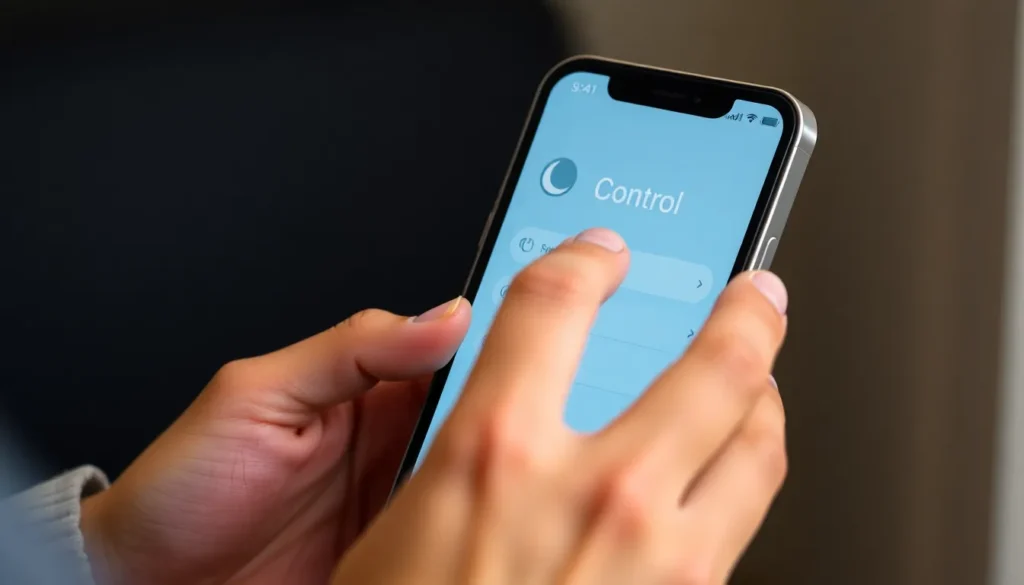
Accessing Do Not Disturb settings on an iPhone can be done easily through multiple methods. Users can quickly disable this feature when needed, ensuring they receive notifications and calls promptly.
Using Control Center
Control Center provides a fast way to manage Do Not Disturb settings. To start, swipe down from the top right corner of the screen on iPhone models with Face ID. For older models, swipe up from the bottom edge. Look for the crescent moon icon in the Control Center. Tap this icon to toggle Do Not Disturb on or off. When it’s gray, this feature is disabled, allowing notifications and calls to come through.
Through Settings Menu
Settings menu offers another method to access Do Not Disturb options. First, open the Settings app on the iPhone. Scroll down and select “Focus” or directly tap on “Do Not Disturb” based on the iOS version. From this menu, the user can turn off Do Not Disturb or adjust scheduling parameters. To disable it, simply flip the toggle switch to the off position. Adjusting settings here provides more control over notifications, tailoring them to personal preferences.
Methods to Remove Do Not Disturb
Removing the Do Not Disturb feature on an iPhone involves a few straightforward methods. Users can choose to temporarily or permanently disable this setting.
Temporarily Disable Do Not Disturb
To quickly disable Do Not Disturb, swipe down from the top right corner of the screen on newer iPhone models or swipe up from the bottom edge on older models. Tapping the crescent moon icon immediately turns off the feature, allowing notifications to come through again. Users who want to ensure they receive critical alerts can follow this method anytime they need to stay connected.
Permanently Turn Off Do Not Disturb
For a more long-lasting solution, access the Settings app and navigate to the Focus section. Selecting Do Not Disturb allows users to toggle the setting off entirely. Once disabled, notifications and calls return to normal operation without interruptions. Adjusting this setting provides more flexibility in managing alerts based on personal preferences.
Troubleshooting Do Not Disturb Issues
When users encounter problems with the Do Not Disturb feature, they often find it challenging to manage notifications and calls effectively. Several common issues can arise, affecting how this functionality performs.
Common Problems
Users may experience difficulties, such as Do Not Disturb not turning off even after tapping the moon icon. Notifications might still arrive silently, causing frustration. Some individuals report that scheduled times for Do Not Disturb do not activate as intended. Another common issue involves apps or contacts being muted despite expected notifications. Lastly, users might discover conflicts with other Focus modes, further complicating how alerts are managed.
Solutions to Resolve Issues
To address these concerns, several solutions exist. First, users should confirm that Do Not Disturb is off by checking the Control Center; toggling it off twice can help. Adjusting the Focus settings may resolve issues related to scheduling. Turning off and restarting the device can refresh the system and ensure all settings apply correctly. Additionally, reviewing notification settings for specific apps can identify any silenced notifications. Lastly, users can explore turning off other Focus modes that might interfere with Do Not Disturb settings.
Removing the Do Not Disturb feature on an iPhone is a straightforward process that enhances connectivity when needed. Whether through the Control Center or the Settings app, users can quickly regain access to notifications and calls. Understanding how to manage this feature empowers individuals to strike a balance between focus and communication. With the right adjustments, users can enjoy a seamless experience tailored to their preferences. If any issues arise, simple troubleshooting steps can restore functionality, ensuring the iPhone remains an effective tool for both work and personal life.